
AI Video Photo Generator Videa
PURE APPSArt & Design
4.41.97K Reviews
- Version
- 1.16.0
- Installs
- 1.00M
- Age Rating
- Everyone
Screenshots
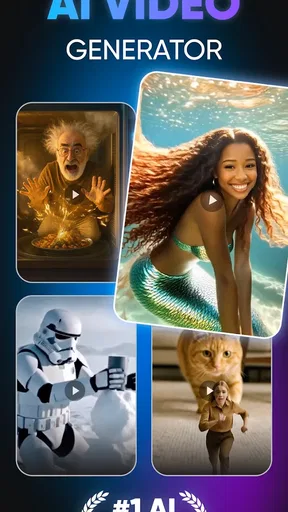
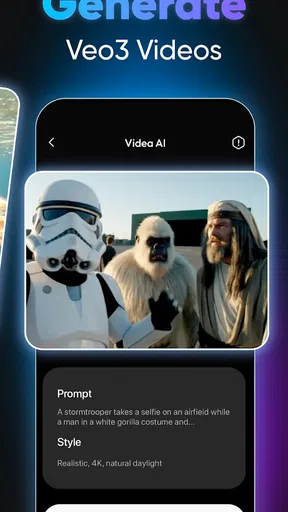
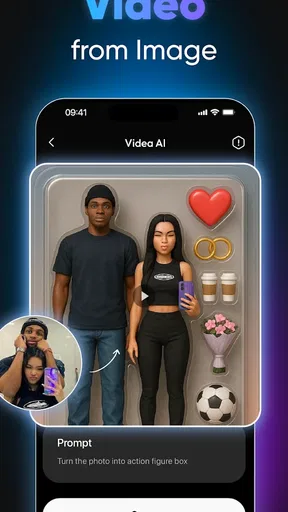
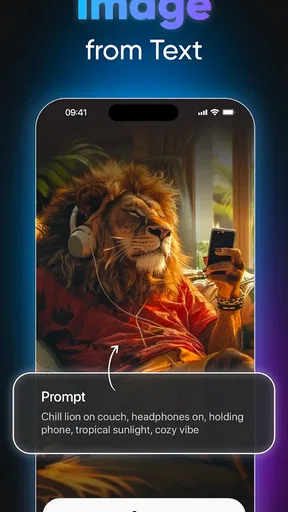
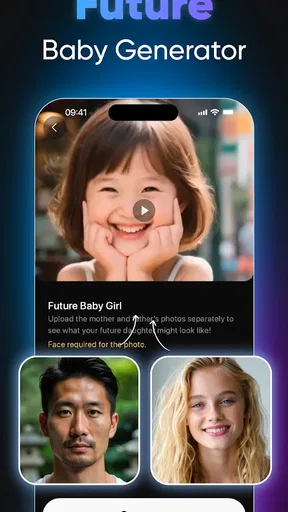
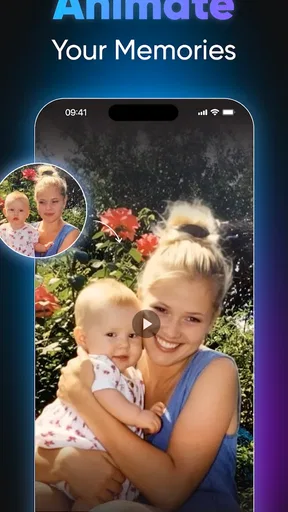
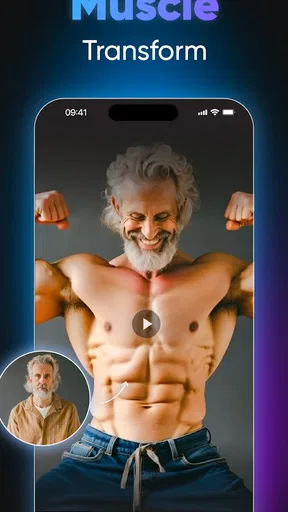
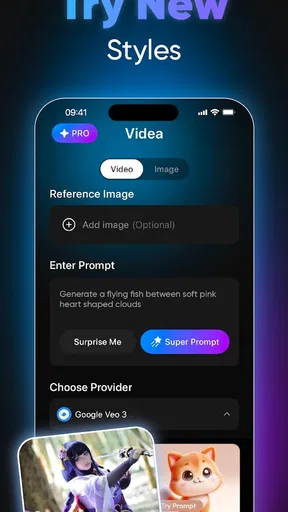
Our Review of AI Video Photo Generator Videa
 Analysis by Appyee
I judge a mobile video maker by a practical question: can it help me turn ordinary clips into something worth sharing without making every edit feel like homework? Videa: AI Video Maker, Effects is aimed at that middle ground. It pairs AI-assisted creation with hands-on editing, so I can start with a quick automated result and still shape the details myself. That balance is more useful than a long feature list when I’m editing between other tasks.
Choose it for speed, then decide how much control you need
Videa is an art and design app from PURE APPS, and its focus is visual creation rather than being a full desktop-style production suite. That distinction matters. If I want a short clip with a stronger mood, transitions, music, or text, a phone-first editor can be a comfortable place to begin. If I need a carefully structured film with extensive control over every layer, I’d look at a more traditional editing tool instead.
The app is free to install and is rated for Everyone. It has a 4.6 average from around 35,000 ratings, and more than a million installs. Those figures suggest it has found an audience, but they don’t tell me whether its workflow suits my own projects; the best test is whether I can get a result I like without fighting the interface.
Where its AI-assisted workflow can help
The useful promise here is not that AI will replace creative decisions, but that it can help me get past the blank timeline. I can use an automatic edit as a first draft, then review the pacing and decide whether the suggested effects actually fit the clips. That’s a better way to treat automation than accepting every choice as final: it saves setup time while leaving room for taste.
For example, after a casual weekend outing, I might have several short clips that look unrelated when viewed one by one. An auto-edit can give them a beginning-to-end shape, with cuts, music, and effects, before I spend time refining anything. I’d check whether the music competes with the moment, whether a transition distracts from the subject, and whether the sequence still makes sense without sound. Those small checks often make a quick montage feel more intentional.
Know when a manual pass is worth it
Videa also lets me trim clips, adjust speed, add text, and work on color. I’d use those controls selectively rather than trying to polish every shot. A title can clarify where a clip was taken or what a short post is about; a speed change can emphasize one brief action; and a restrained color adjustment can help clips from different lighting conditions sit together more comfortably.
One practical trade-off is that more options do not automatically mean a better edit. Effects can make a casual video feel lively, but stacking several strong looks can pull attention away from the people or place I’m trying to show. I’d pick a visual direction first—such as a clean, warm recap or a deliberately retro sequence—and use effects that support it. The app is most helpful when I treat its suggestions as ingredients, not instructions.
When another kind of editor makes more sense
Compared with a basic trimming app, Videa is better suited to someone who wants an edit to feel styled, not merely shortened. Compared with a more manual editor, its AI-led approach is appealing when I want a starting point quickly, but it may not be the right fit if my priority is detailed control over a complex project. Those are different needs, rather than a simple question of which kind of app is universally better.
I’d also choose a simpler tool if I only needed to remove the beginning and end of one clip. Conversely, if I were assembling a longer piece with precise timing, many edits, or a tightly planned visual sequence, I’d prefer a workflow designed around that level of control. Videa’s strongest case is the short-form, everyday project where speed and a creative finish matter more than painstaking construction.
If you’re wondering whether you need editing experience, I’d say no: the automatic route gives you a way to start, while the manual controls are there when you want to make a result feel more personal. If you’re wondering whether you can still make your own choices, yes—the app combines automated suggestions with adjustments such as trimming, speed, text, and color. I would still review the finished sequence rather than assume the first pass is ready to post.
Getting to Know Videa
First off, let's talk about the user interface. It's smooth and intuitive. You know those apps that are so complicated that you just give up? Well, Videa: AI Video Maker, Effects isn't one of them. As soon as you open it, you're greeted with a clean and user-friendly layout. Everything is exactly where you'd expect it to be, which means less time fumbling around and more time creating.
But what really sets Videa apart is its AI-powered features. The app’s algorithms are like your creative sidekick, suggesting edits and effects you might not have considered. It’s kind of like having a little creative genie that knows exactly what your video needs. Magic, right?
Features That Wow
Let's dive into some of the standout features. The app offers a wide range of effects that can transform your videos from "meh" to "wow" in seconds. We're talking about everything from basic filters to advanced effects like glitch and retro vibes. Plus, there's an impressive library of transitions to make sure your clips flow seamlessly from one to the next.
The AI integration is a game-changer. It analyzes your video and suggests specific effects and enhancements. It's like having a professional editor whispering in your ear, "You know what would look great here?" And more often than not, it's spot on!
Another feature worth mentioning is the auto-editing tool. If you’re in a rush or just feeling lazy, you can let the app do its thing. It’ll cut and stitch your clips together, add some music, and sprinkle in a few effects to create something share-worthy. I tried it with a bunch of random clips from my weekend, and I was pleasantly surprised at how coherent and engaging the final product was.
A Creative Playground
While Videa's AI is fantastic, you don't have to rely solely on it. The app gives you the freedom to manually tweak and experiment, which is perfect for those of us who like to have control over every little detail. You can adjust the speed, trim clips, and add text overlays. There’s also a music library packed with tunes to fit any vibe you're going for.
And if you're someone who loves to get creative with color, you're in luck. Videa provides a robust color correction tool that lets you fine-tune hues, saturation, and brightness. It’s like having a mini color grading suite right on your phone.
Sharing Your Masterpiece
Once you've crafted your video, sharing it is a breeze. The app supports high-quality exports, so you don’t have to worry about losing any detail. Plus, you can upload directly to your favorite social media platforms without leaving the app. It's a seamless process that makes sharing your creations as easy as creating them.
There's even an option to save your projects in different formats, which is super handy if you're planning to use your video across various platforms. No more juggling multiple apps to get the right format!
Cost, compatibility, and the switching question
Videa is free to download, but it includes in-app purchases ranging from $2.99 to $119.99 per item. I’d start with the free experience and decide whether the editing style and workflow are worth paying for before buying anything. The presence of optional purchases means it’s sensible to check the current in-app choices before building a routine around a feature you may want to use often.
The current version is 1.11.1 and it requires Android 7.0 or later. If you’re moving from another editor, I wouldn’t transfer every habit automatically: first make a small test project, try an AI-assisted pass, then make one or two manual changes and export it. That reveals whether the app’s way of organizing the work feels natural before you commit a bigger project to it.
For a low-friction switch, keep the original clips untouched until you’re happy with the exported result. A useful test is to make two versions of the same short set of footage: one mostly automated and one where you replace the effects or pacing that don’t suit you. Comparing them makes it easier to see whether Videa’s suggestions are genuinely saving time, rather than simply moving the work to a later review.
A good match for quick visual stories
I’d recommend giving it a try if you regularly make short recaps, social posts, or personal clips and want more than basic trimming without learning a complicated editor first. It may be especially useful when you have footage but no clear plan: let the first edit suggest a sequence, then use text or a restrained color adjustment to give the result a more deliberate feel. That workflow can help a casual creator get from a camera roll to a shareable story.
I’d skip it if your main job is exacting, long-form editing or if you prefer to build every cut and effect from scratch. It also isn’t necessary for someone who only wants to crop or shorten a single clip. The best reason to choose Videa is the combination of a quick AI-generated starting point and enough manual editing to make that draft feel like yours.
Final Thoughts
In a world where content is king, having a tool like Videa in your arsenal is invaluable. It's versatile, easy to use, and packed with features that cater to both casual users and video editing enthusiasts. Whether you're crafting a quick Instagram story or working on a more elaborate project, Videa: AI Video Maker, Effects has got your back.
It's not just about making videos; it's about creating something that tells a story, captures a moment, or evokes an emotion. And with Videa, you can do all that without the hassle. So, if you're ready to elevate your video game, give Videa a try. It might just become your new favorite app.
Verdict
Strengths of AI Video Photo Generator Videa
- Intuitive user interface for easy navigation.
- Wide range of AI-powered video effects.
- Quick export with various format options.
- Seamless integration with social platforms.
- Regular updates with new features.
Limitations of AI Video Photo Generator Videa
- Limited free version features.
- Occasional lag on older devices.
- In-app purchases can add up.
- Requires internet for full functionality.
- Heavy on battery usage.
Similar Picks in This Category
View All
Canva: AI Photo & Video Editor
Canva4.8

PENUP – Drawing-sharing SNS
Samsung Electronics Co., Ltd.4.5

Crafto
Kutumb App4.6

Sketchbook
Sketchbook4.1

ibis Paint X
ibis inc.4.5

Adobe Express: AI Photo, Video
Adobe4.6
Frequently Asked Questions
What features does Videa: AI Video Maker, Effects offer?
Videa: AI Video Maker, Effects provides a comprehensive suite of tools for creating dynamic videos with ease. Users can access AI-driven editing features, a variety of filters, effects, and transitions, as well as music and text overlay options. The app is designed for both beginners and experienced creators looking to enhance their video production.
Is Videa: AI Video Maker, Effects suitable for beginners?
Yes, Videa is highly suitable for beginners thanks to its intuitive interface and AI-powered tools. The app simplifies the video editing process by offering automated editing features that guide users through creating professional-looking videos without needing extensive experience. Tutorials and tips are also available to help new users get started.
What are the system requirements for Videa: AI Video Maker, Effects?
Videa is available for both Android and iOS platforms. For optimal performance, it is recommended to have at least Android 8.0 or iOS 12.0. The app may require a significant amount of storage space due to high-resolution video processing. Ensure your device meets these requirements for the best user experience.
Are there any in-app purchases or subscriptions in Videa: AI Video Maker, Effects?
Yes, while Videa offers a range of free features, there are in-app purchases and subscription options available. These include access to premium effects, additional music tracks, and advanced editing tools. Subscriptions typically offer a monthly or annual plan, providing an ad-free experience and unlocking all features.
How can I share my videos created with Videa?
Videa makes sharing your creations simple and efficient. Once your video is finalized, you can export it in various formats and resolutions. The app supports direct sharing to popular social media platforms such as Instagram, Facebook, and YouTube. Alternatively, you can save the video to your device for later use or sharing.
